
How do I automate my Whatnot data import?
While Seller Ledger had allowed Whatnot sellers to upload their CSV ledger reports for a while, you now also have the option to automatically import your full financial history.
Using Chrome Browser
In order to automatically import your transaction history from Whatnot, you must be using Google's Chrome browser. If you do not currently have it installed on your computer, you can do so here.
Browser Extension
Once you are using Chrome, you will then need to install Seller Ledger's Browser Extension. This program adds features to the browser itself that lets Seller Ledger talk to Whatnot in order to import your order and payout history. Simply go to our extension's listing on the Chrome Web Store and click the "Add to Chrome" button
Prior Users of Whatnot CSV file imports
For prior Whatnot customers who had been uploading CSV ledger report files, just click into your existing Whatnot account from the Seller Ledger dashboard, and you will see the following message in the upper right:

You may be prompted to log into your Whatnot selling account from a pop-up.
New Whatnot Users
If you are just starting with Whatnot accounting on Seller Ledger, just click the Whatnot button on the "Connect Accounts" page:
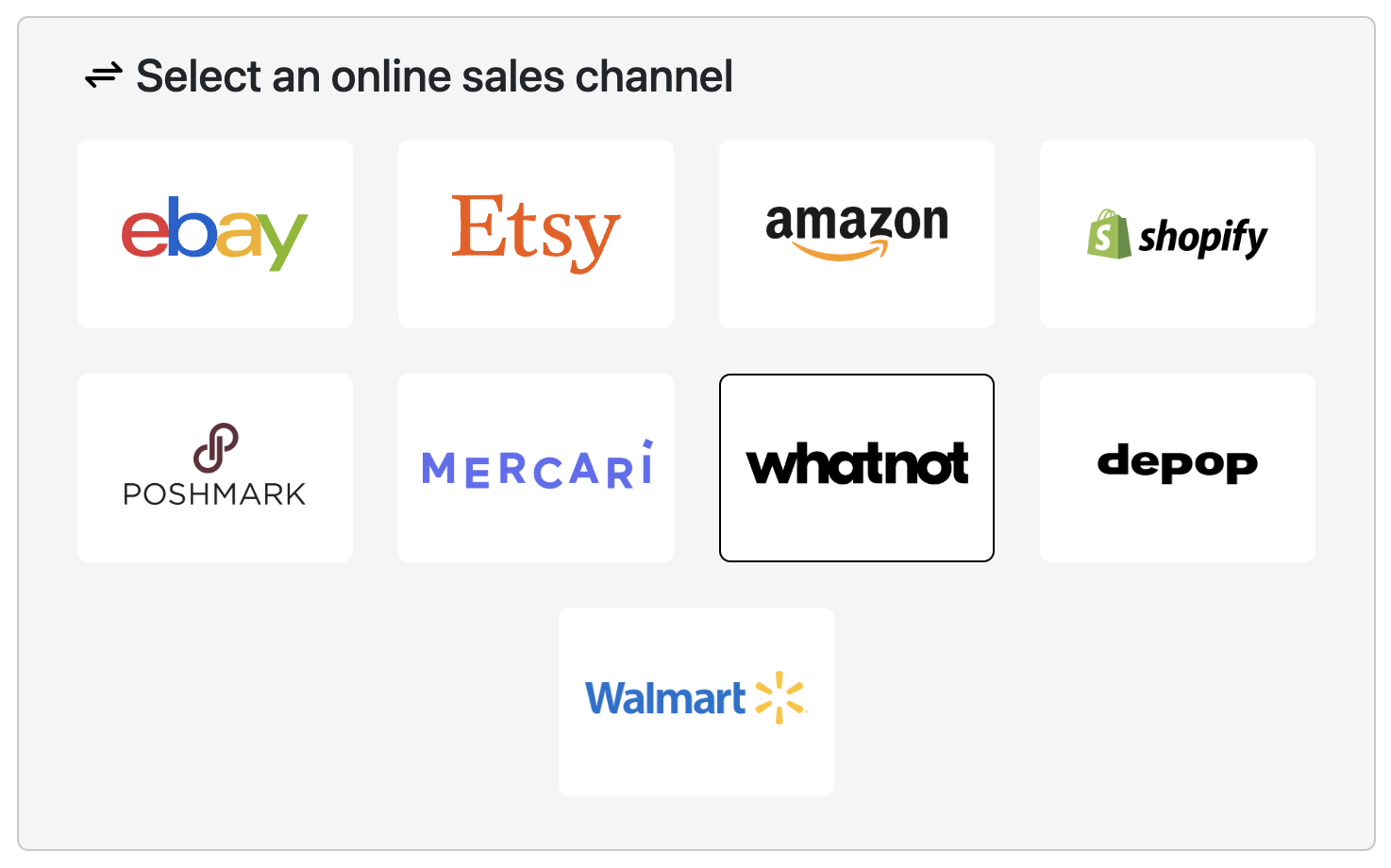
Then, just follow the instructions to make sure you are using Chrome and have the Seller Ledger Browser Extension installed. You may also be asked to log into your Whatnot account.