
How do I turn on continuous inventory?
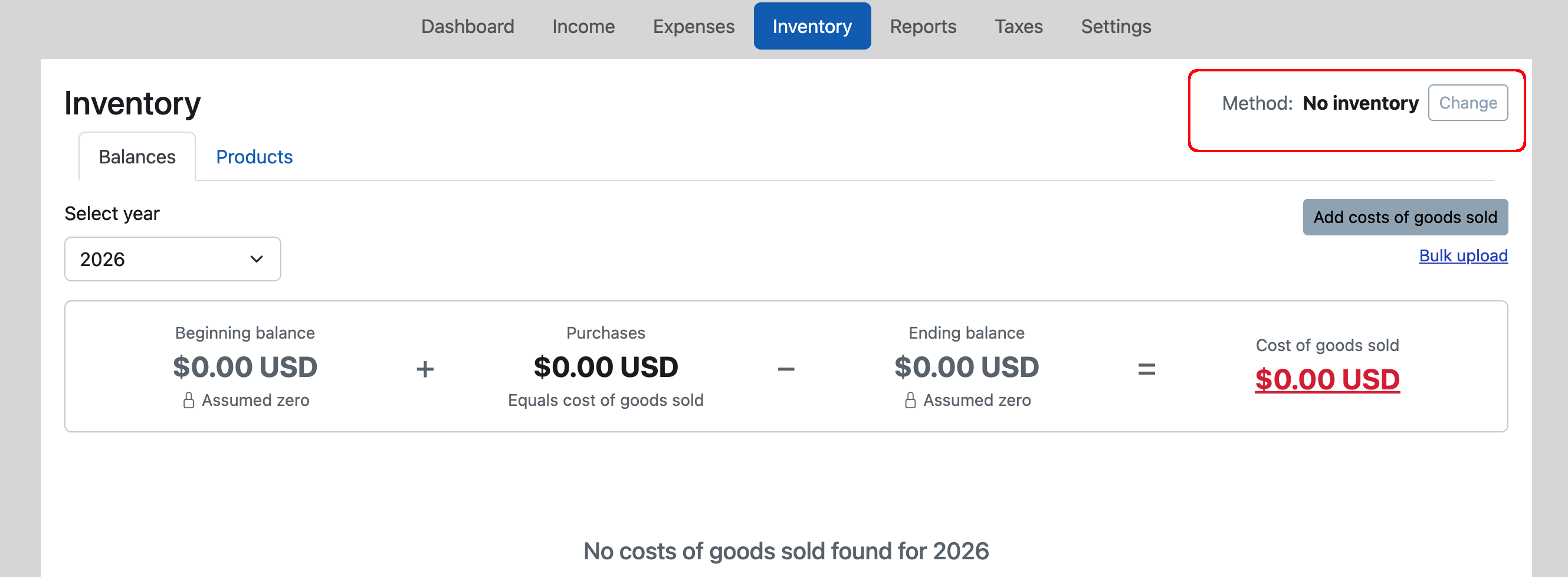
Click on the Inventory tab and check the method in the upper right corner. If it says "No Inventory" that means you are still set up as "cash-based", where you categorize purchases as Cost of Goods Sold. And if it says "Periodic", then you are able update the inventory balance, but not track the costs of every item.
To turn on continuous inventory, click the "change" button
From there, you'll be presented with the following screen (which shows what it would look like if you are on "No Inventory" - a.k.a. cash-based. If you were on Periodic, the middle column would be selected.
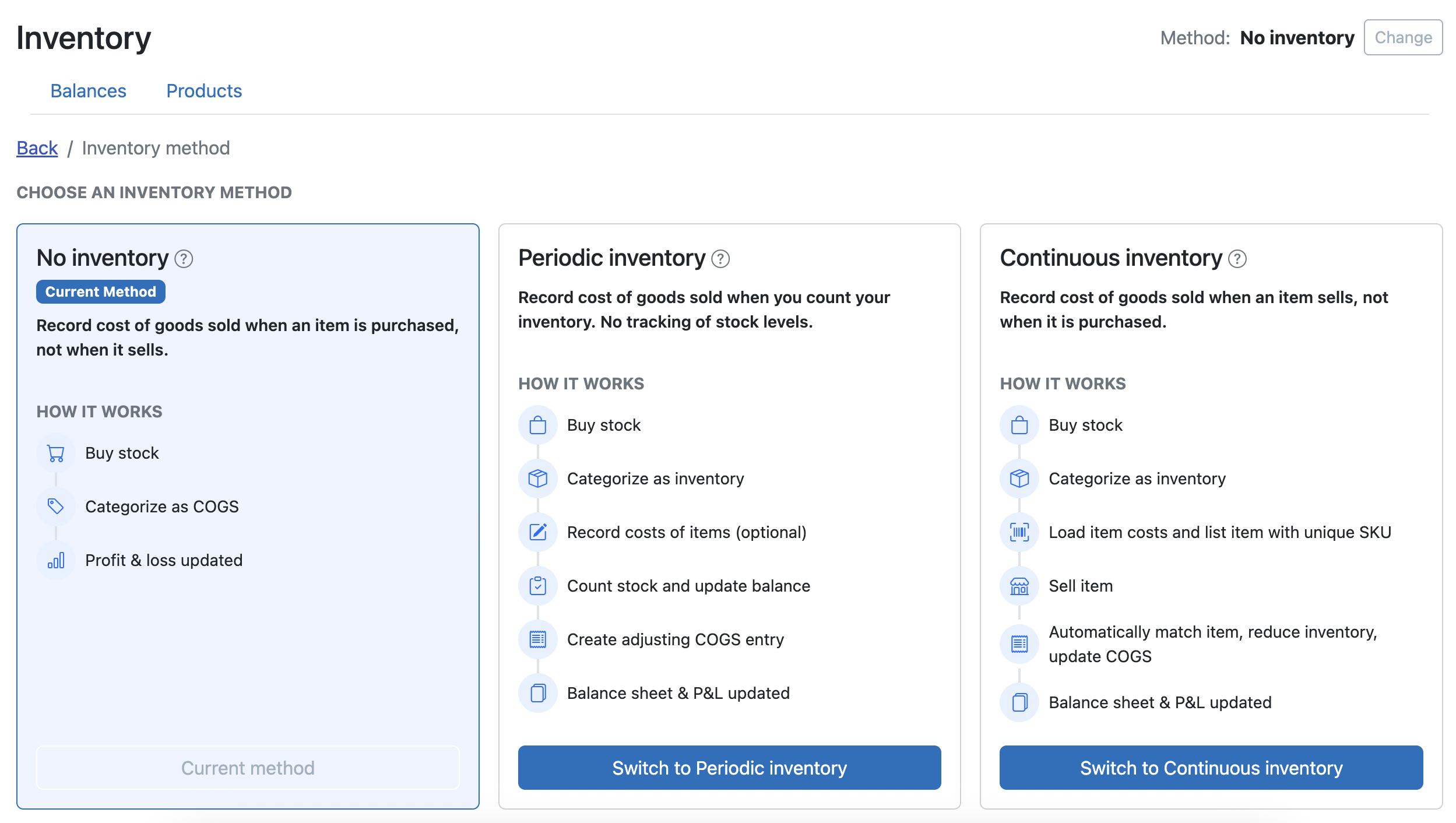
Click the button to "Switch to Continuous inventory." You'll then see the following dialog box pop up:
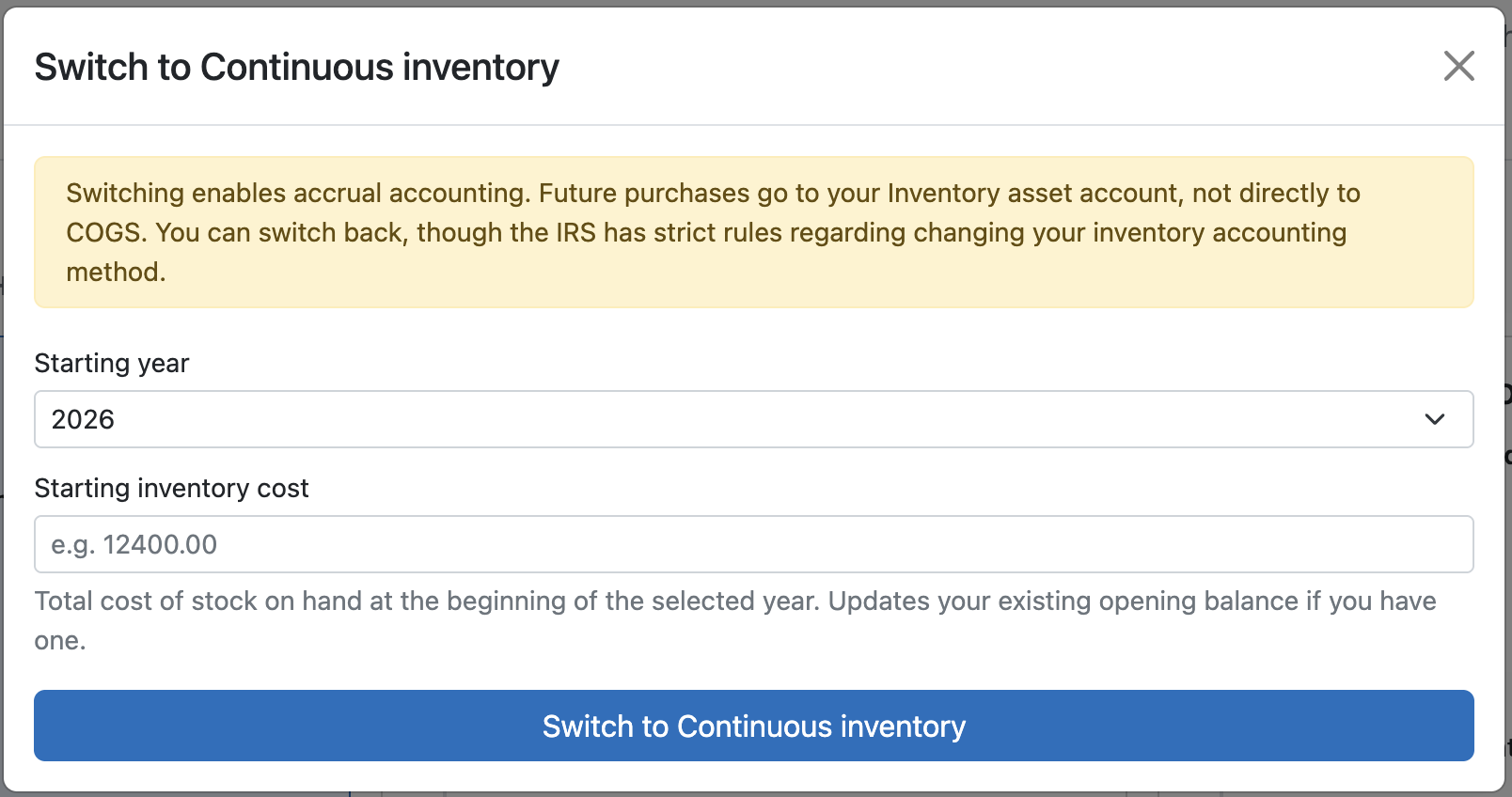
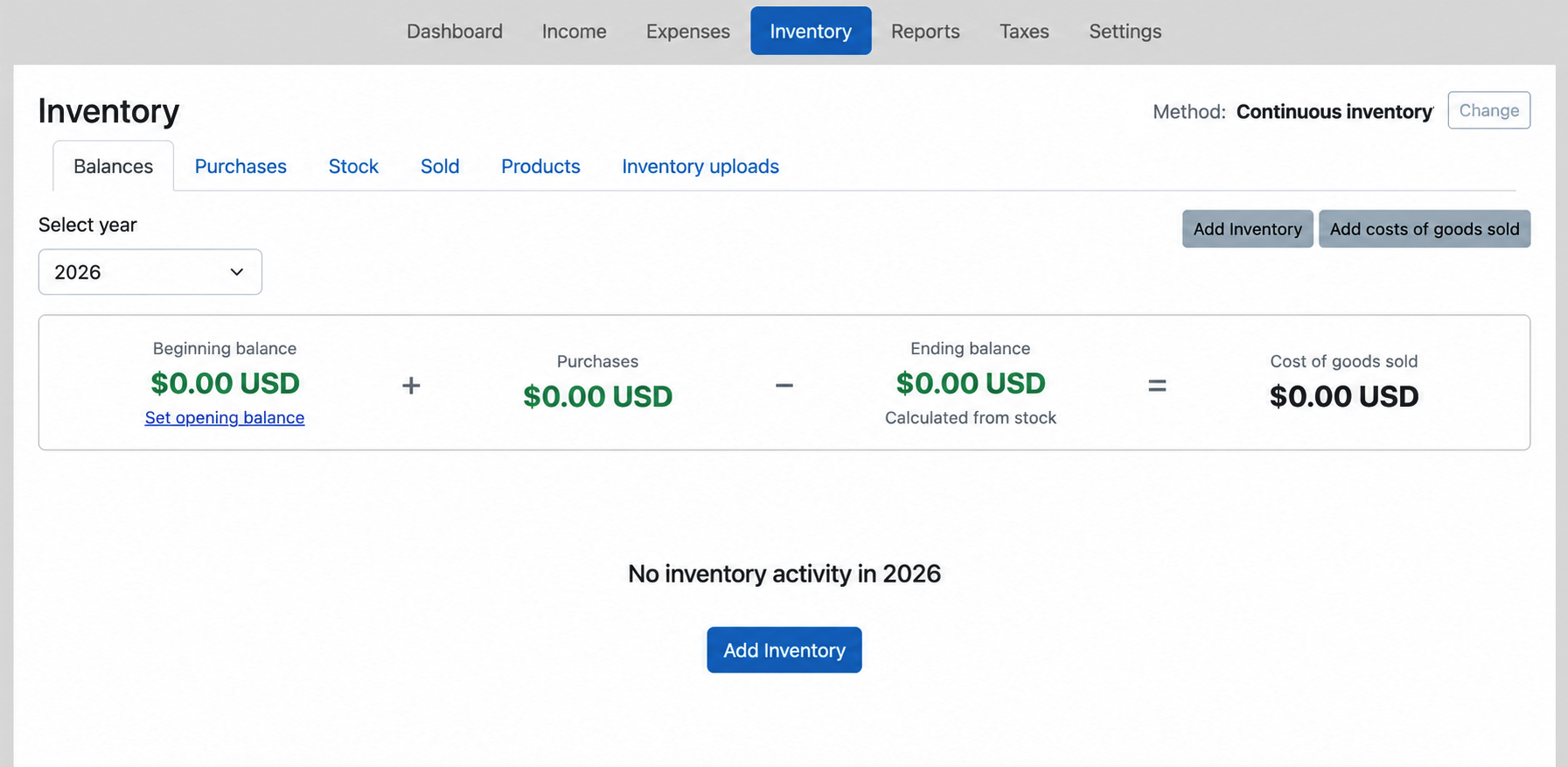
Many sellers will enter the end of year balance that they filed with their prior year's tax return. Click the blue "Switch to Continuous Iventory" and you'll be ready to track your individual inventory items. You'll be returned to a very similar Inventory view, with the same overall formula for calculating Cost of Goods Sold. But you should notice two changes:
- The method in the upper right now says "Continuous inventory" instead of "No Inventory" (or "Periodic inventory").
- There are a few extra sub-tabs: Stock shows you your inventory stocks levels and histories of purchases and sales; Sold shows you the items that have sold, their cost basis, and gross profit; and Inventory uploads, which allows you to upload Inventory purchases in bulks using CSV-formatted files.
If you find that continuous inventory is too much for you (either too hard or too much work,) you can always opt for an easier option. We do allow you to switch back to cash-based inventory. You can also opt for periodic inventory, which involves occasional updates to your current inventory balance totals.