
How do I hide an account from my dashboard?
As your business changes over time, you may find yourself with connected accounts on your Seller Ledger dashboard that you no longer actively use. Maybe you closed a marketplace shop, switched banks, or stopped using a particular credit card for business. Seller Ledger allows you to remove the account from your actively used list of accounts on the dashboard without losing the transaction history.
Hide the account (keep the history)
If the account has transaction history you want to keep, you can hide the account. This removes it from your main dashboard view but preserves all of the underlying transactions in your reports and tax summaries.
To hide an account:
- From your dashboard, click into the account you want to hide.
-
Click the edit (pencil) icon next to the account name at the top of the account view.

- In the pop-up, look for the option to Show on dashboard. Uncheck that box.
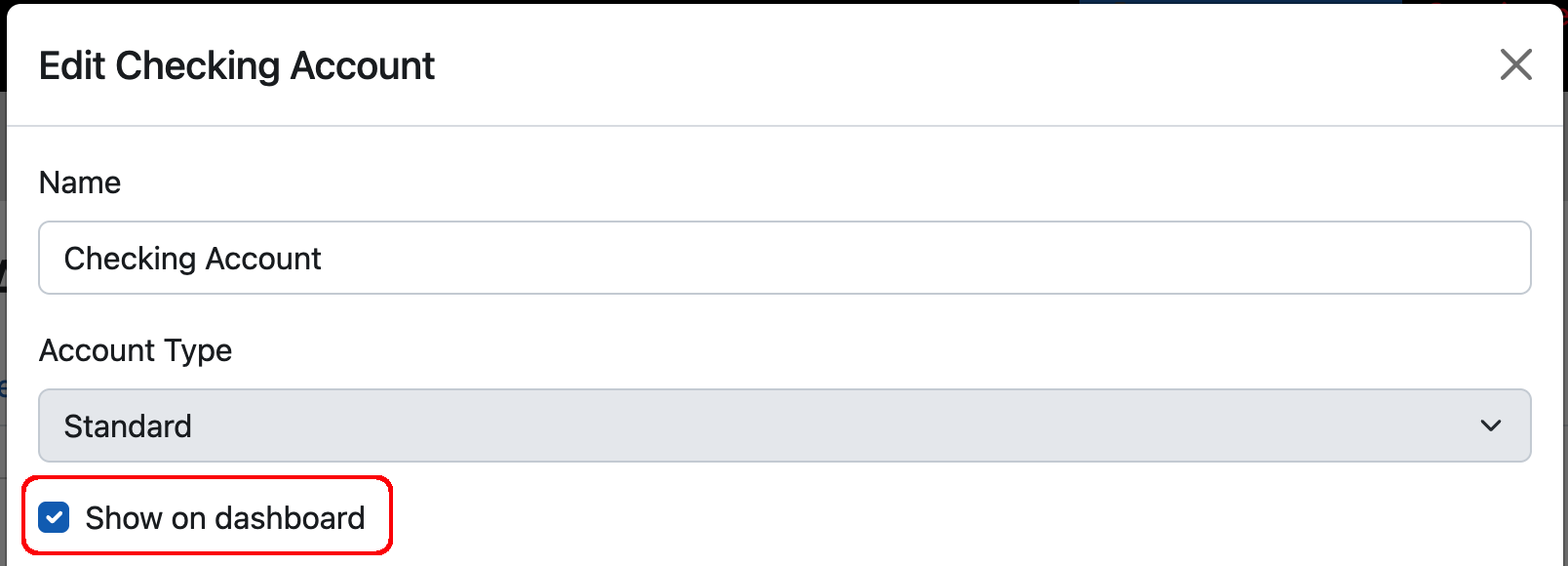
- Click Save.
The account will no longer appear on your main dashboard, but its transactions will still be included in your Profit & Loss, Schedule C tax report, and other reports.
How do I see or unhide a hidden account?
Hidden accounts can be viewed (and un-hidden) at any time. From your dashboard, look for the option to Manage accounts near the bottom of the account list. This takes you to the full list of accounts you are tracking in Seller Ledger. You can also get to this list by going to Settings -> Accounts. From that list, you can click the edit/pencil icon next to the account at any time to change its visibility.