
How do I edit or delete products in Seller Ledger?
As you use Seller Ledger to track inventory (even if you just write off cost of goods sold using the cash-method,) your product list can grow over time. Sometimes you'll want to clean things up. This might include editing a product name or SKU, or removing products you no longer sell or that were added by mistake. This article walks through how to do both.
Where to find your products
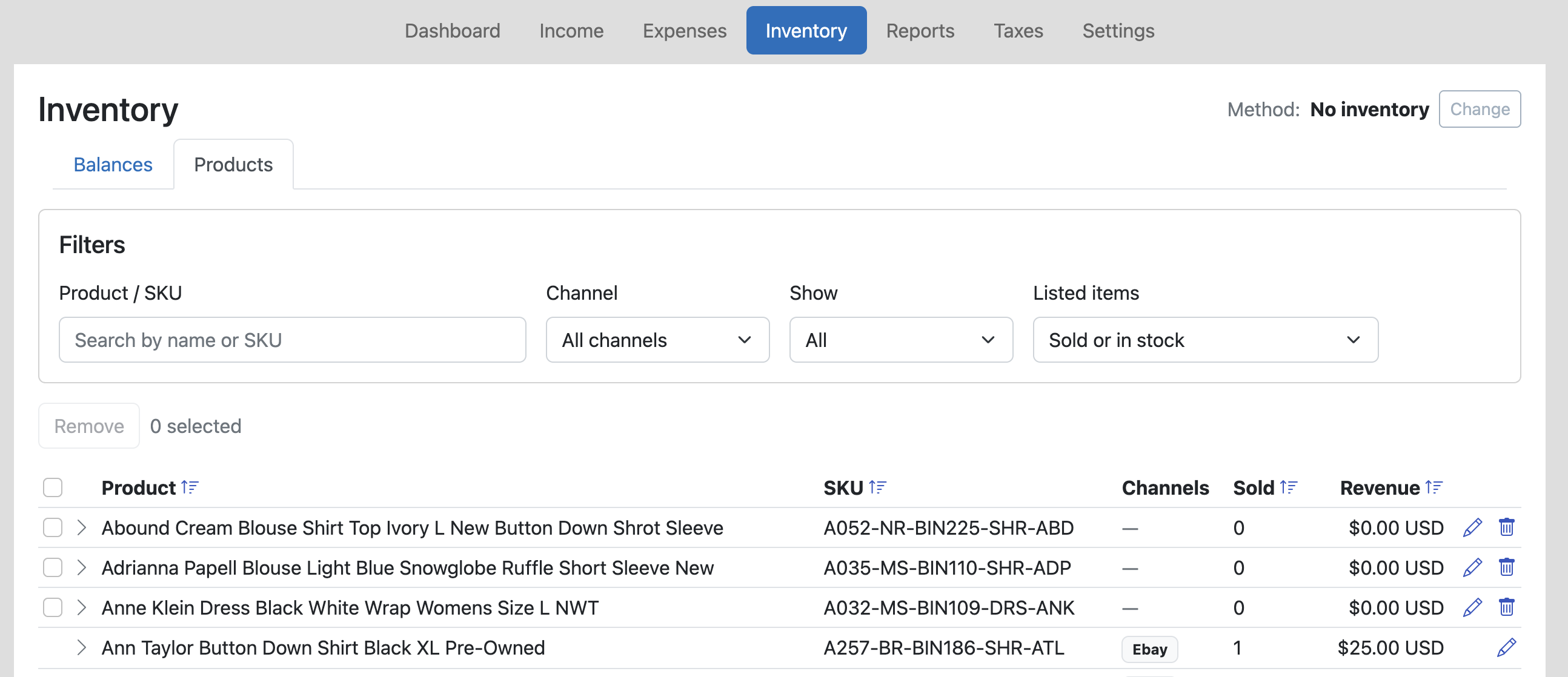
All of your products live under the Inventory → Products sub-tab. From here, you can see the full list of products Seller Ledger is tracking, along with information like SKU, channels where they have sold and quantity sold.
Editing a product
If you need to change a product's name, SKU, or other details:
- Find the product you want to edit and click the edit/pencil icon to that far right of that row.
- Update the fields you'd like to change.
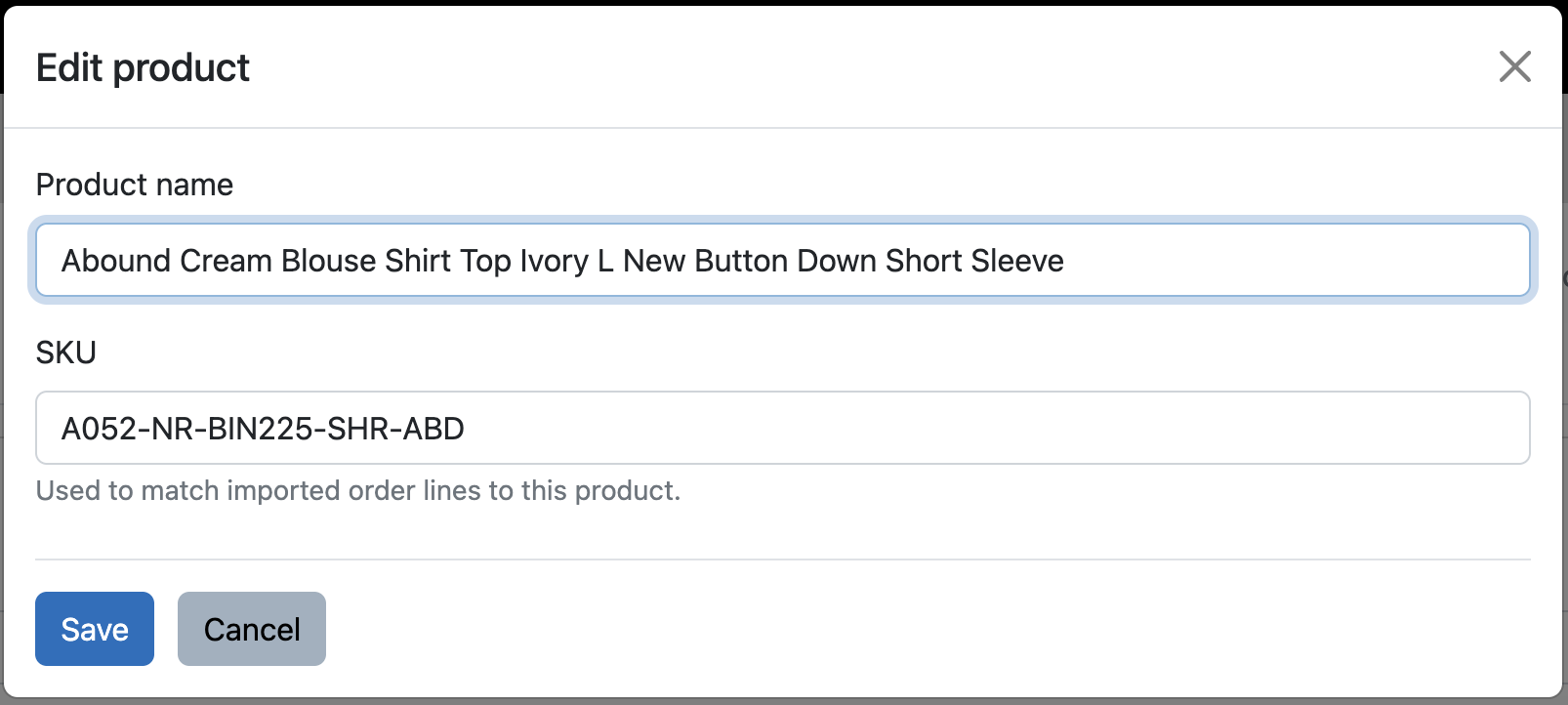
- Click Save.
Any edits you make will apply going forward and will also update how the product appears in your existing inventory and sales history.
Deleting a product
You can delete a product in Seller Ledger, but only if that product has no associated purchase or sale data. This is intentional - deleting a product that's tied to purchases or sales would leave gaps in your inventory and cost of goods sold calculations.
Here's how to tell whether a product can be deleted:
- If a product can be deleted, you'll see a checkbox available on the left side of that row.
- If a product can't be deleted (because it has purchase or sale history tied to it), the checkbox will be unavailable.
How to delete one or more products
- Go to Inventory → Products.
- Check the box on the left of each product you'd like to delete.
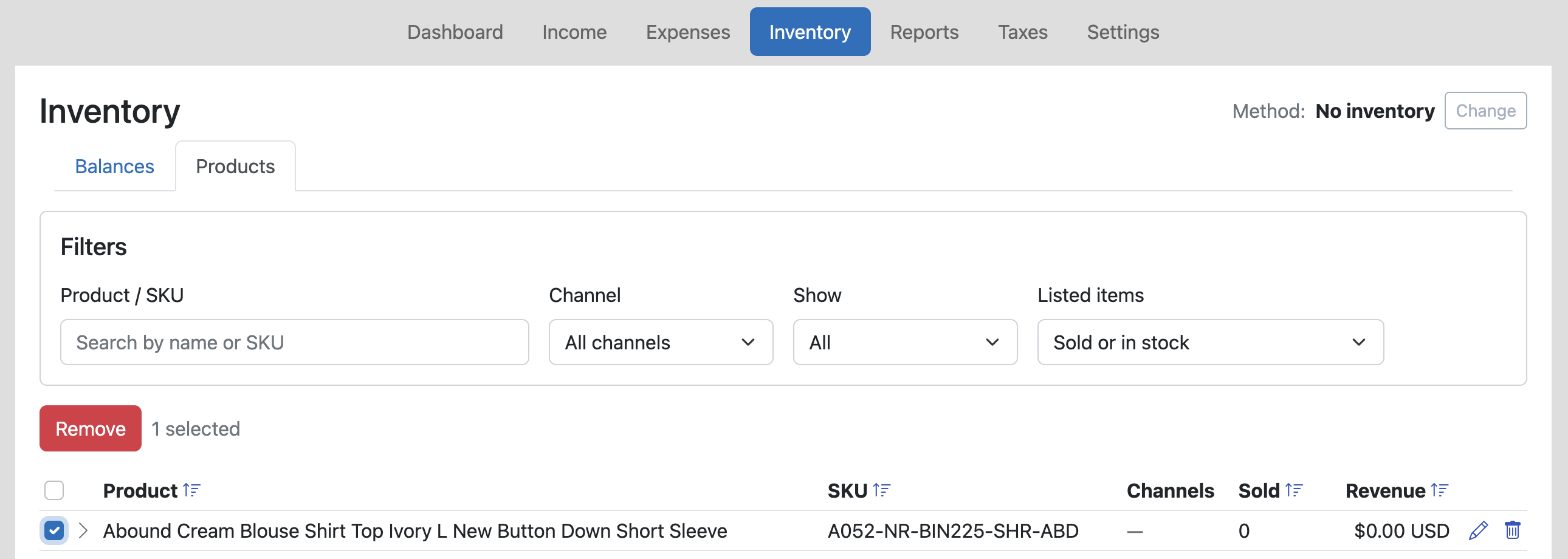
- The Remove button at the top of that column will become active. Click it to delete the product.
Selecting all products on a page
If you want to clean up a lot of products at once, you can use the checkbox at the top of the checkbox column to select every product on the current page that's eligible for deletion. Products with purchase or sale history will remain unselected, since they can't be deleted.
Tip: Sort by "Sold" to find products with no sales
If you're trying to identify products that are safe to delete — for example, old test products, duplicates, or items you added but never actually sold — a quick trick is to sort the list by the Sold column.
- Go to Inventory → Products.
- Click the Sold column header to sort by sold quantity.
- Sort ascending so that products with zero sales appear at the top.