
How do I connect multiple eBay accounts?
Seller Ledger uses OAuth to connect most online marketplace and store accounts (eBay, Etsy, Amazon, and Shopify). This means we redirect you to those marketplaces, where you sign in and give us permission to import your transaction history.
If you sell on more than one eBay account, you can connect all of them to Seller Ledger. There's just one important step you need to remember: you must be logged out of eBay before connecting an additional account.
Why do you have to log out first?
When Seller Ledger redirects you to eBay's website, eBay checks to see if you're already logged in. If you are, it assumes you want to grant permission for that account - the one you're currently signed into.
So if you already have one eBay account connected and you're still logged into eBay in your browser, clicking to add a second account will just re-authorize the same account you already connected. You won't see a login screen, and you won't have a chance to choose a different account.
The fix is simple: log out of eBay in your browser first, then start the connection process from within Seller Ledger.
Connecting an additional eBay account
Once you've logged out of eBay, here's how to connect another account:
- In Seller Ledger, find the eBay section on your dashboard.
- Click the small "+" icon to the right of the eBay name.
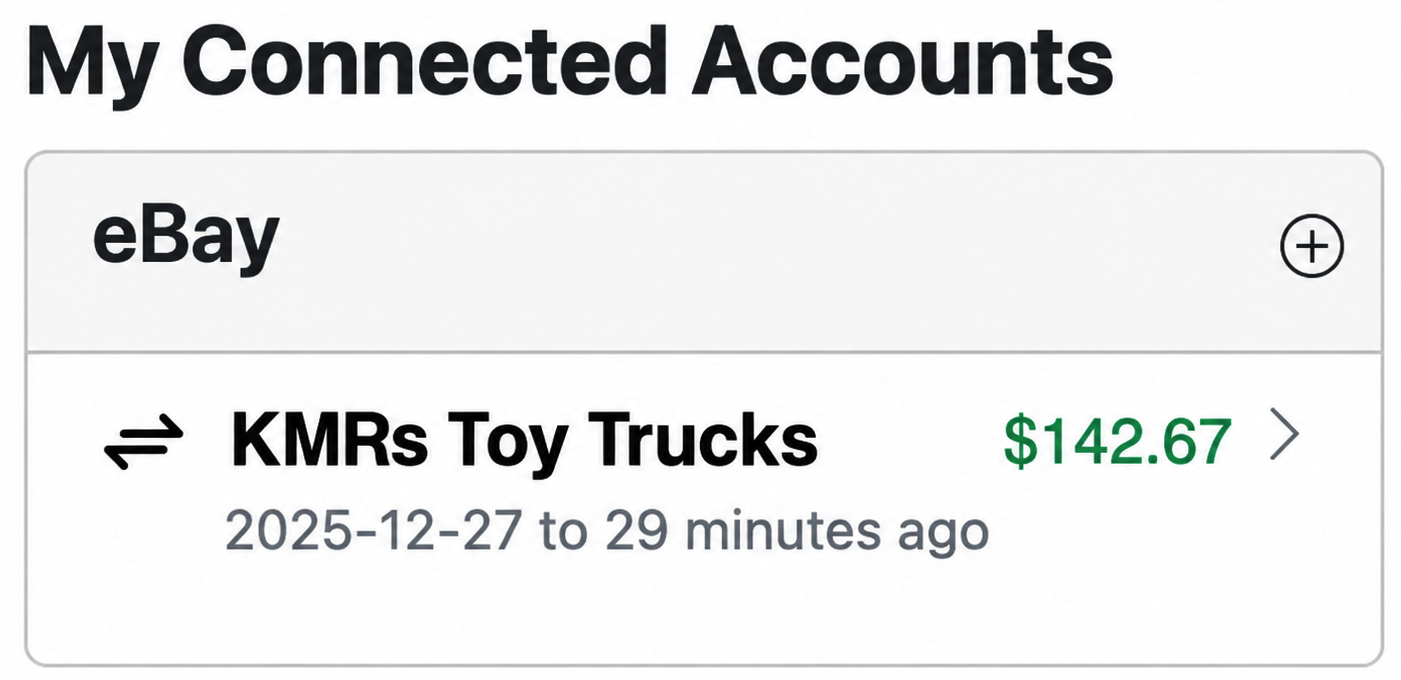
- You'll be redirected to eBay's login page. Sign in using the credentials for the new account you want to connect.
- Grant Seller Ledger permission to access that account.
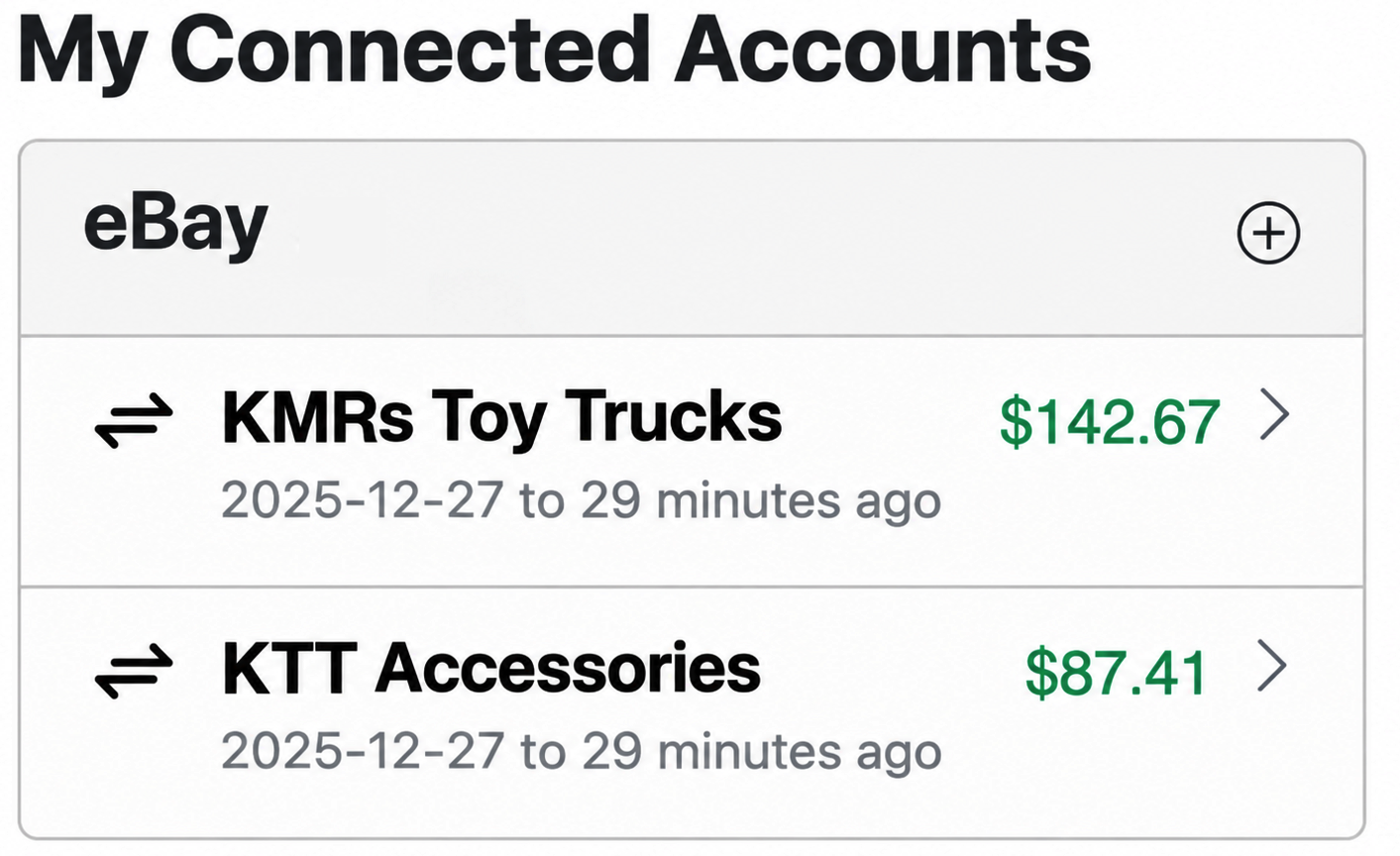
- You'll be returned to Seller Ledger, where the new account will now appear as a separate account on your dashboard.
Authorizations expire - what to do when you're asked to reconnect
Marketplaces don't keep Seller Ledger's permission to access your account forever. After a certain amount of time, you'll be asked to reconnect the account so we can continue importing your sales and expense data.
When you have more than one eBay account connected, this reconnection process takes a little extra care. Here's the order of operations that works reliably:
- When Seller Ledger prompts you to reconnect an account, click the Reconnect link next to the first account.
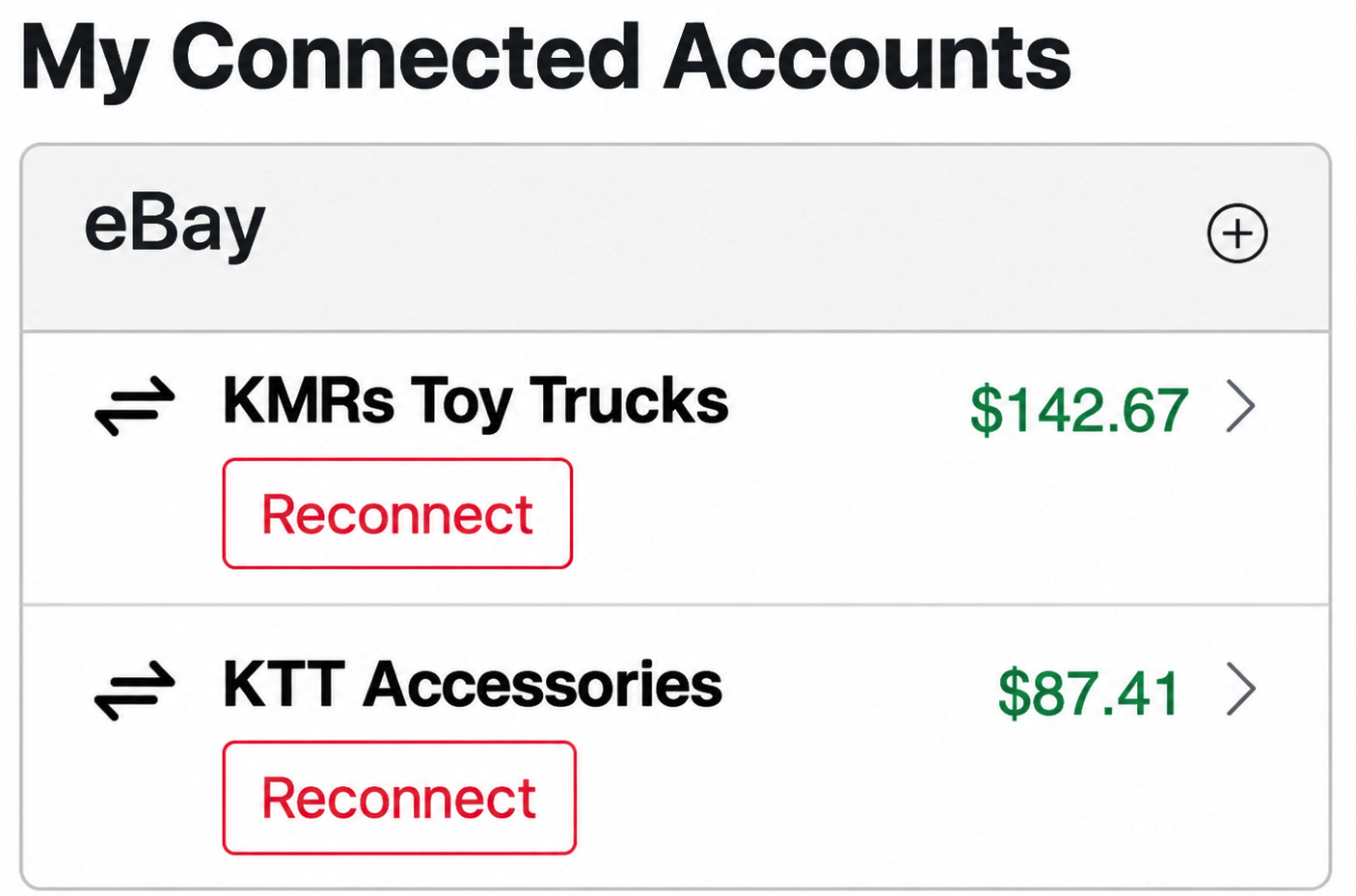
- You'll be redirected to eBay. Log in with the credentials for that first account and re-authorize Seller Ledger.
- Once you're back in Seller Ledger, go to eBay in a new browser tab and log out of eBay completely.
- Return to Seller Ledger and click the Reconnect link next to the second account.
- You'll be redirected to eBay again. This time, because you logged out, you'll be prompted to sign in. Use the credentials for the second account and re-authorize Seller Ledger.
- Repeat the log-out / reconnect cycle for any additional accounts you have connected.
The key thing to remember is that, between each reconnection, you need to log out of eBay. Otherwise, eBay will assume you're trying to re-authorize the account you're currently signed into, and you'll end up reconnecting the same account twice instead of fixing the second one.
Seeing profit and loss for an individual eBay account
If you have multiple eBay accounts connected, you may want to see how each one is performing on its own — not just as part of your overall eBay totals. Seller Ledger makes this easy using the channel and store filters on the Profit & Loss report.
Here's how:
- Go to the Reports tab and open your Profit & Loss report.
- Near the top of the report, you'll see a filter for Channel. Choose eBay.
- Once you've selected eBay as the channel, a second filter will appear that lets you choose a specific Store. This filter only appears when you have more than one account connected for the selected channel.
- Pick the eBay account you want to see results for.
The report will now show income, expenses, and net profit for just that one eBay account. You can switch between stores at any time using the same filter, or clear the Store filter to see totals across all of your eBay accounts combined.
This is a great way to compare performance between accounts. For example, if one account focuses on a different category of items, or if you're testing out a second account and want to see how it's doing on its own.