
What are categories and how do they work?
Categories are used to group related income and expense transactions, both to understand how your business is doing, and to help you prepare for tax time.
When you import transactions from eBay, Seller Ledger already has a good idea from the information eBay provides what is in each amount. So, we automatically assign categories to things like item sales, shipping, and fees.
However, when we first import transactions from banks and credit cards, we don't know much about them, so we ask you to tell us.
How do I categorize a transaction?
If you click into a bank or credit card account, you will see a nice yellow button with the words "Uncategorized income/expense" on it, with a pencil icon:

Click on it, and you will be presented with the following pop-up:
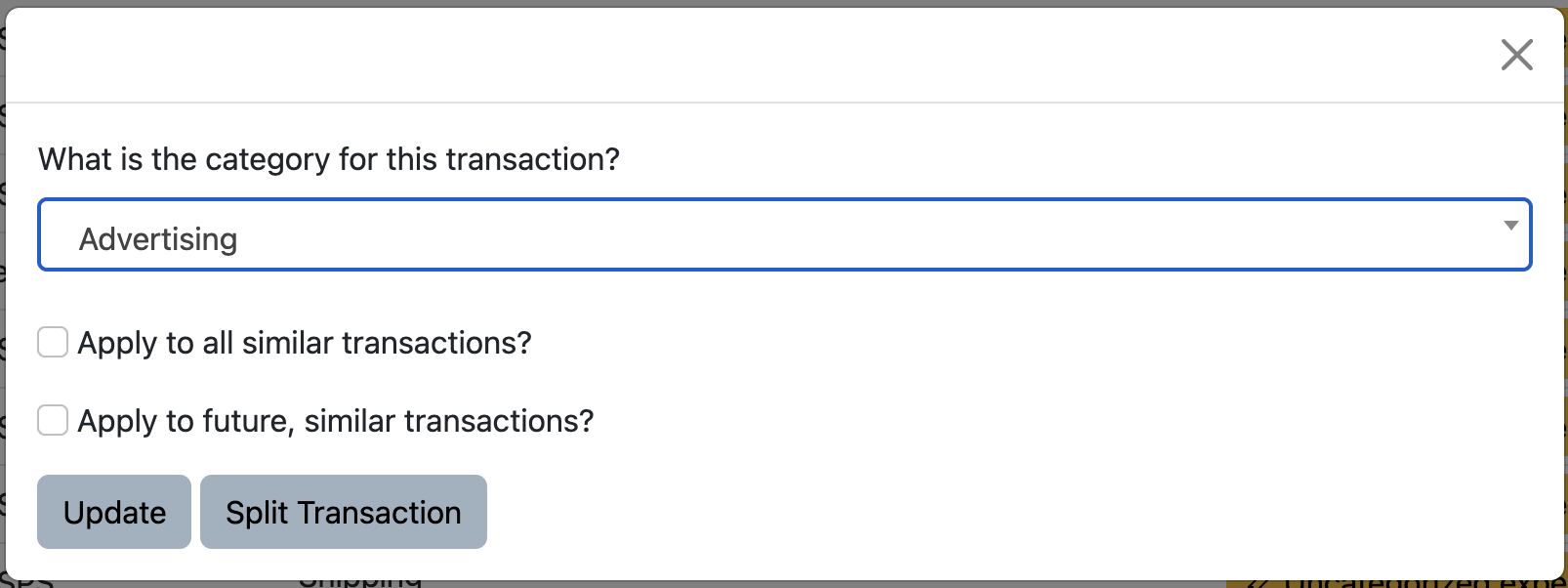
Choose the correct category from the drop-down and then, if you would like Seller Ledger to apply this categorization to all other transactions for this payee, check the box. We can also do it for all similar transactions in the future.
Want to break a transaction into multiple categories? That's where the "Split Transaction" comes in. Learn more about how to use that here.
Can I change the category on a transaction after I've categorized it?
Yes, on bank and credit card accounts. Click into the account and find the transaction. The category column shows the category's name next to a pencil icon. Click it, choose a different category from the drop-down, and click Update. If the transaction has been split, the category column shows a Change button instead, which reopens the split screen.
A deposit or withdrawal that has been matched to a transfer between your accounts shows a Matched Transfer (or Matched payout) badge instead of a category, and one matched to inventory shows Matched Inventory. Click the badge to see or change the match. Learn more about transfers here.
Transactions imported from a connected marketplace such as eBay, Etsy, Shopify or Whatnot (sales, refunds, fees, shipping and payouts) can't be recategorized one at a time. There is no pencil icon on those rows, and the categories you see when you expand an order are for reference only.
Instead, Seller Ledger puts each type of marketplace amount into a category based on your settings. To change one, go to Settings → Customize connections, choose the marketplace, click the pencil next to the type of transaction, choose the new category and click Save. This changes every transaction of that type, both past and future, for all of your connected accounts on that marketplace, so it isn't the way to fix a single transaction.