
What is "continuous" inventory tracking?
Continuous inventory tracking (sometimes called "item-level" tracking) is Seller Ledger's most detailed way to manage inventory and cost of goods sold. Rather than counting up your remaining inventory once a year (or once a quarter) and using a formula to back into your cost of goods sold, continuous tracking follows each item you buy through to the moment it sells — so your inventory balance, your cost of goods sold, and your gross profit are all accurate and up to date, automatically.
If you'd like to see how this compares to the simpler options, take a look at periodic inventory tracking and cash-based inventory tracking.
The lifecycle of an item under continuous tracking
The best way to understand continuous tracking is to follow a single item from purchase to sale. Here's what that looks like in Seller Ledger.
Step 1: Purchase your inventory
Every item starts with a purchase. This might be a wholesale order, a thrift store haul, a single retail purchase, or a box lot from an estate sale.
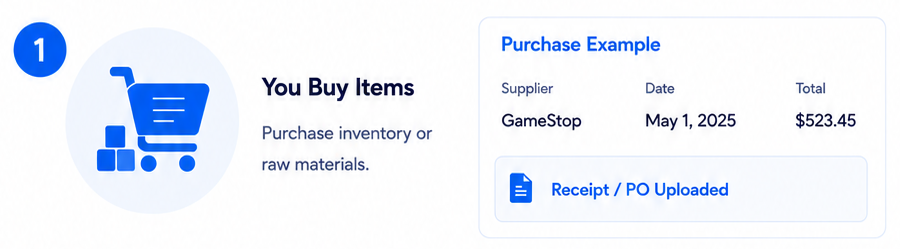
If the purchase is made with a connected bank account or credit card, that transaction will import into Seller Ledger automatically. All you need to do is categorize it as Inventory. If you don't have that account connected, you can also add the purchase manually from the Inventory tab.
Step 2: Assign a SKU and cost to each item purchased
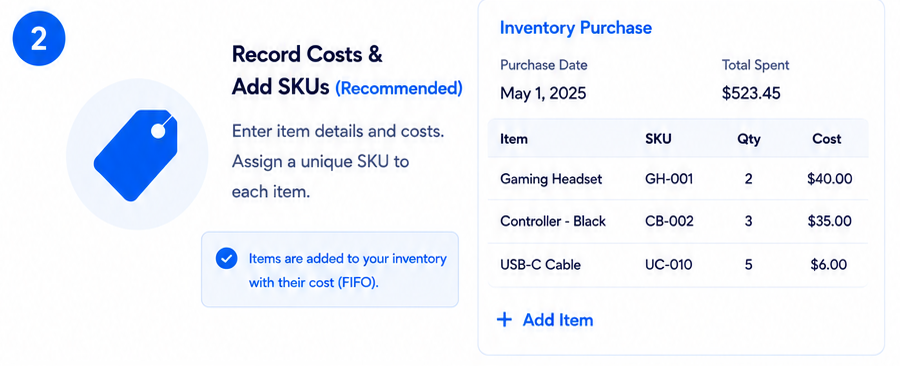
Seller Ledger provides a number ways of to record your item costs and SKU values, including:
- Manually typing in the value
- Uploading a receipt of your purchase
- Uploading a CSV file of the items in your purchase (or purchase order
See how to use each of these methods for recording inventory purchase details.
Step 3: You list the item for sale — with the same SKU
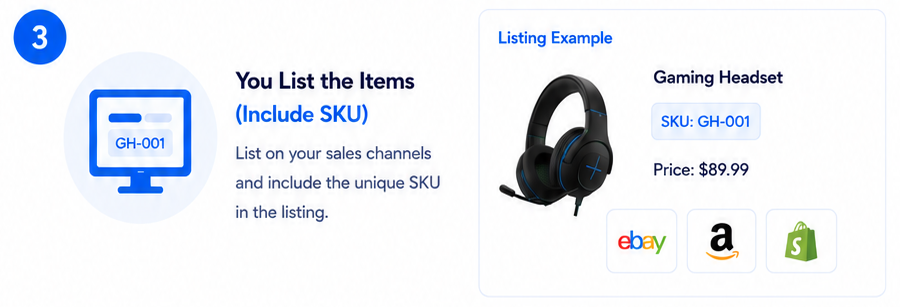
If you sell on eBay, you'll want to use the Custom Label (SKU) field, which is no longer shown by default. Learn how to do this properly.
Step 4: The item sells
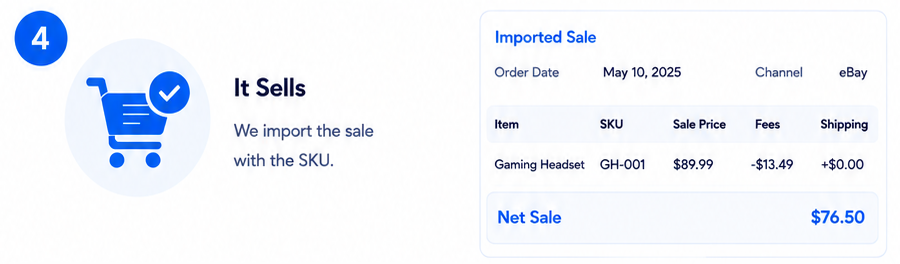
When the item sells, Seller Ledger imports the sale from your connected sales channel, along with whatever product information the channel provides (which typically includes the SKU and the product name/title).
Step 5: We match the sale to your records, reducing inventory and updating cost of goods sold
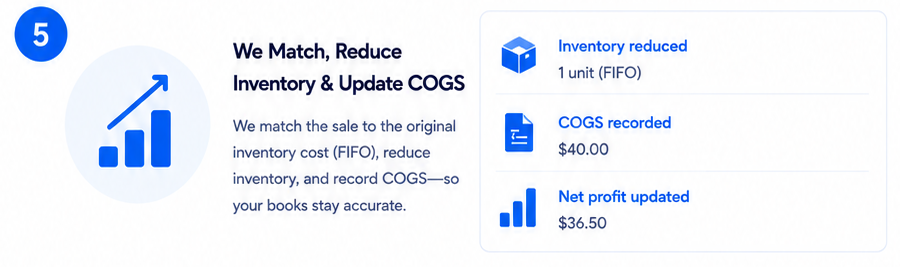
Seller Ledger uses the SKU value provided my the marketplace order to match the item to your inventory records and find the item cost using the First-In, First-Out (FIFO) method.
Once a match is made, two things happen without any extra work on your part:
- Your inventory balance is reduced by the cost of the item that sold.
- That same amount is recorded as Cost of Goods Sold.
You'll see a new entry under Inventory → Balances with a negative amount equal to the cost of the sold item. At the top of the page, the Cost of Goods Sold total will have increased, and the Current Balance will have decreased.
Even better, because Seller Ledger now knows both what the item sold for and what it cost, you'll be able to see your gross profit on that sale.
What if Seller Ledger can't automatically match a sale?
Sometimes an item sells before you've had a chance to enter its cost — or the SKUs don't line up, or you're catching up on older sales. That's fine - you can add costs after the fact. See how to do so here.
Why choose continuous tracking?
Because costs are tied to the specific item sold — not to an average, an estimate, or a once-a-year count — continuous tracking gives you the most accurate view of your business:
- Accurate profit on every order. You'll see exactly how much you made on each sale, not just for the year as a whole.
- Real-time inventory balances. Your Inventory account reflects what you actually have on hand, updated as sales come in.
- Better business decisions. Knowing your true margins by product helps you decide what to keep sourcing, what to raise prices on, and what to stop selling.
Continuous tracking does take more effort than periodic or cash-based tracking, since you're recording details for each item you buy. But for sellers who want to run their business smarter — not just file taxes correctly — the extra work pays off.
To see how to turn on continuous inventory, check out this article.