
How do I reconcile my bank or credit card account?
Reconciling an account means checking that the transactions and balances in Seller Ledger match your official bank or credit card statement. It's a good habit for keeping your books accurate. It also makes tax time, and any work with your accountant, much smoother.
Seller Ledger lets you reconcile each connected bank or credit card account one statement period at a time. This article covers:
- What reconciling is and why it matters
- How to start reconciling a statement period
- What to do if the numbers don't match
- What to do if Seller Ledger can't read your statement
- Moving on to the next period
What does "reconciling" mean?
Each month, your bank or credit card company sends a statement. The statement shows:
- An opening balance at the start of the period
- A closing balance at the end of the period
- Every transaction in between
When you reconcile, you confirm that Seller Ledger shows the same balances for the same dates. If the numbers match, your books for that period are complete and accurate. If they don't, something is missing, extra, or dated in the wrong period. The reconcile process helps you find and fix it.
Before you start
Have these ready:
- Your statement for the period, ideally as a PDF downloaded from your bank or credit card website. Seller Ledger tries to read the statement for you. You can also type the numbers in by hand.
- A connected bank or credit card account in Seller Ledger.
You don't need to categorize every transaction before you reconcile. Reconciling checks dates and amounts, not categories.
Step 1: Open the Statements view
- From your dashboard, click into the bank or credit card account you want to reconcile.
- Open the Statements view for that account.

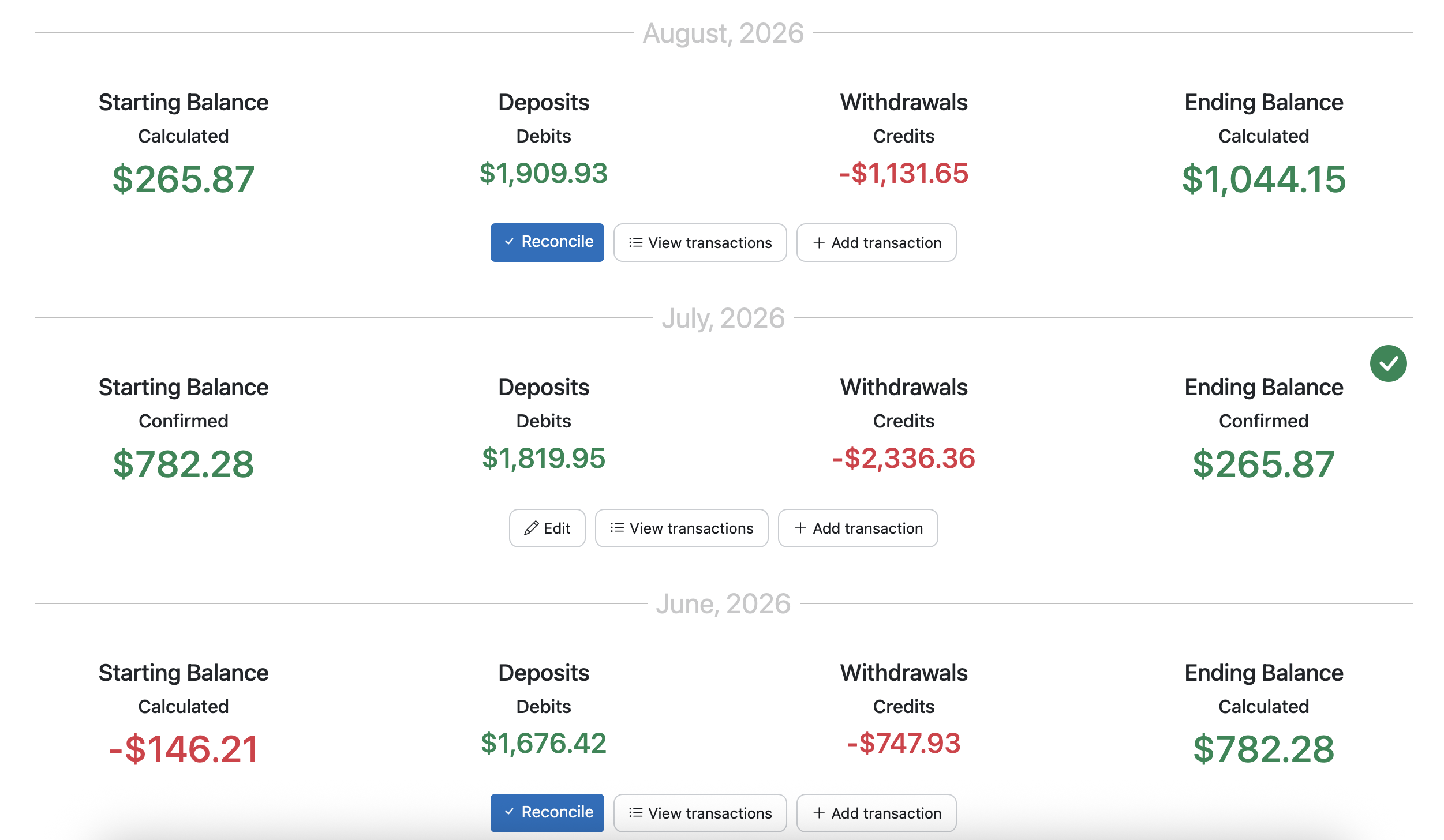
The Statements view lists your account activity by monthly periods, matching how most banks and credit cards issue statements.
Step 2: Start reconciling a period
- Find the statement period you want to reconcile.
- Click the Reconcile button for that period.
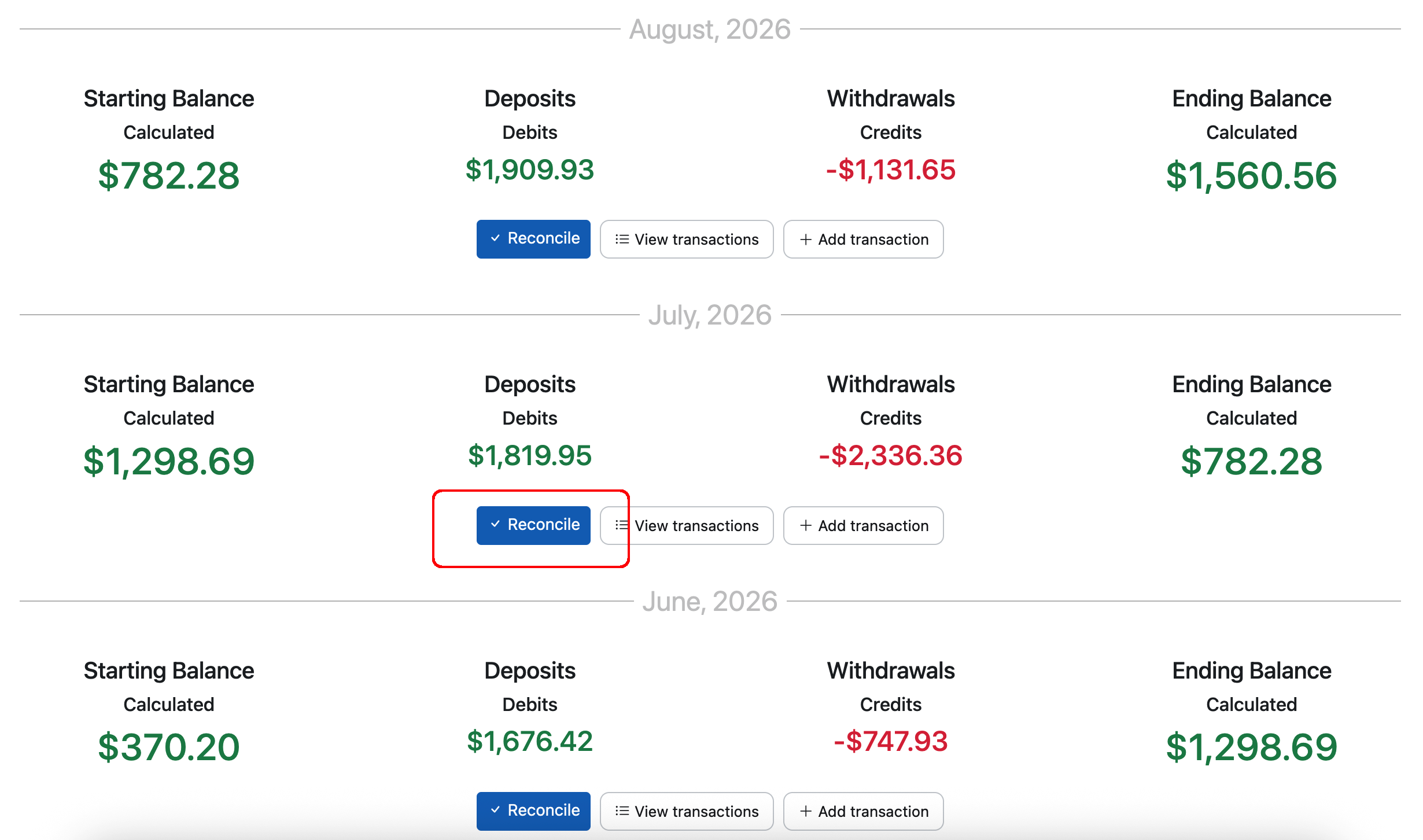
Step 3: Upload your statement
- When prompted, upload the bank or credit card statement for that period. Seller Ledger has a pretty good success rate (> 90%) extracting these values from PDF bank statements, but if we are unsuccessful, or your would prefer to manually record the opening and closing dates and balances, you may do so.
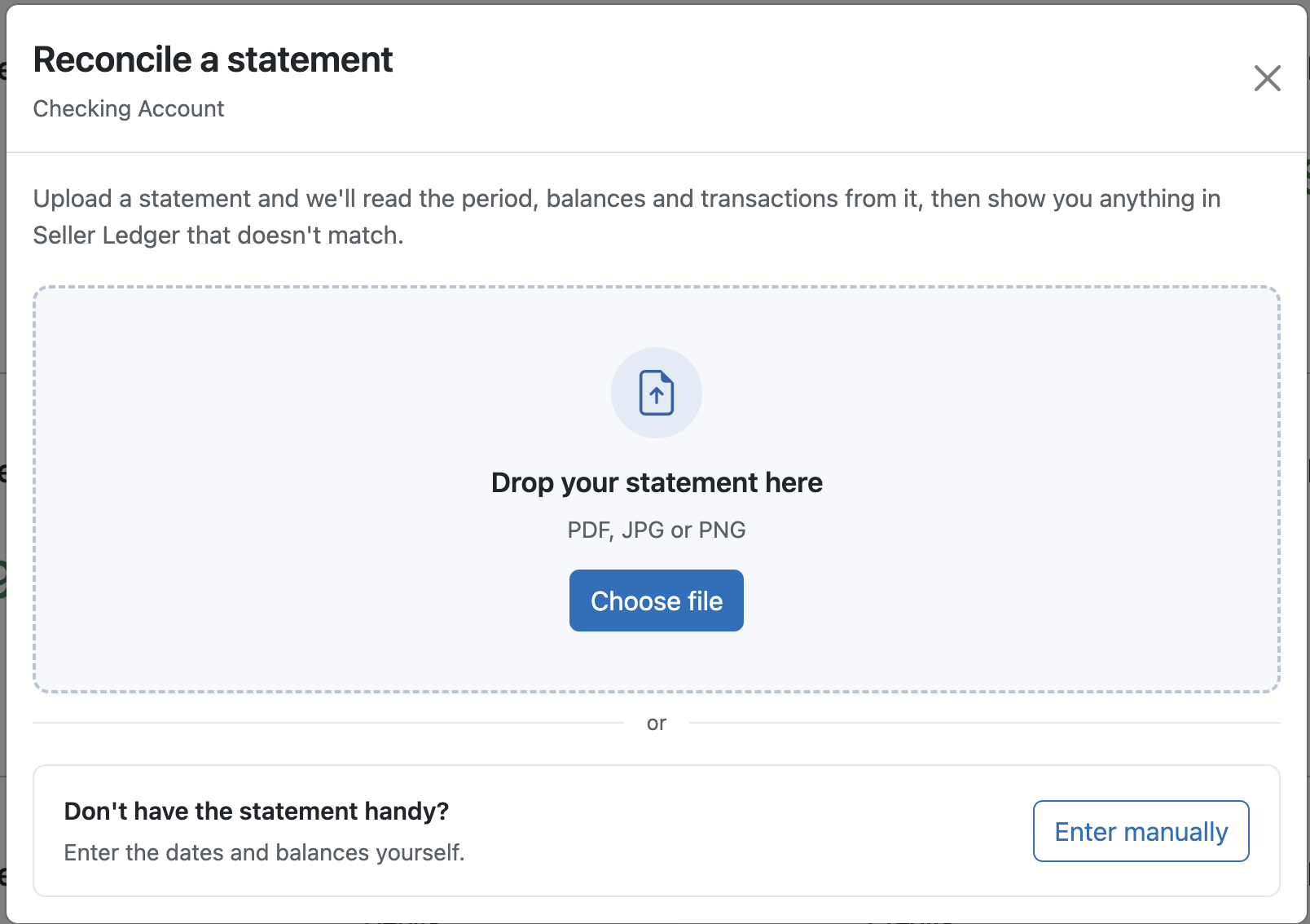
Note: Because PDF statements can be very detailed, it could take Seller Ledger up to a minute to extract all of the key information.
- Seller Ledger will read the statement and pull out:
- The opening date and opening balance
- The closing date and closing balance
- Review the values Seller Ledger found and make sure they match your statement.
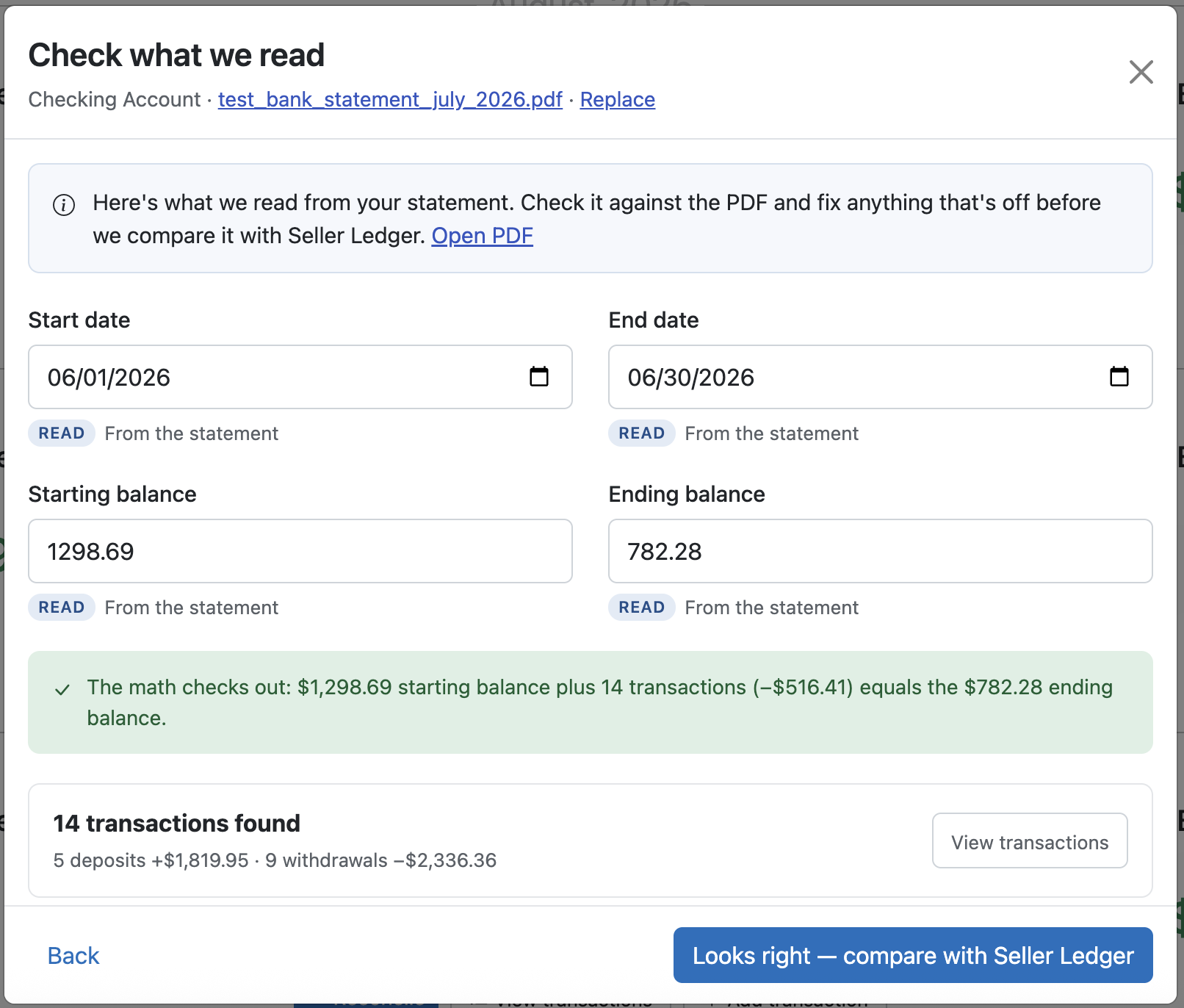
If Seller Ledger can't read your statement, you can enter these values yourself.
If everything looks good, click the button to compare with what's in Seller Ledger.
Step 4: Compare with Seller Ledger
Seller Ledger compares the statement balances to the balances it calculates for the same dates.
How Seller Ledger calculates its balances: It starts with the most recent balance your bank reports. Then it works backward through your transactions to figure out what the balance was on earlier dates.
If the numbers match: You'll see a screenshot like the following:
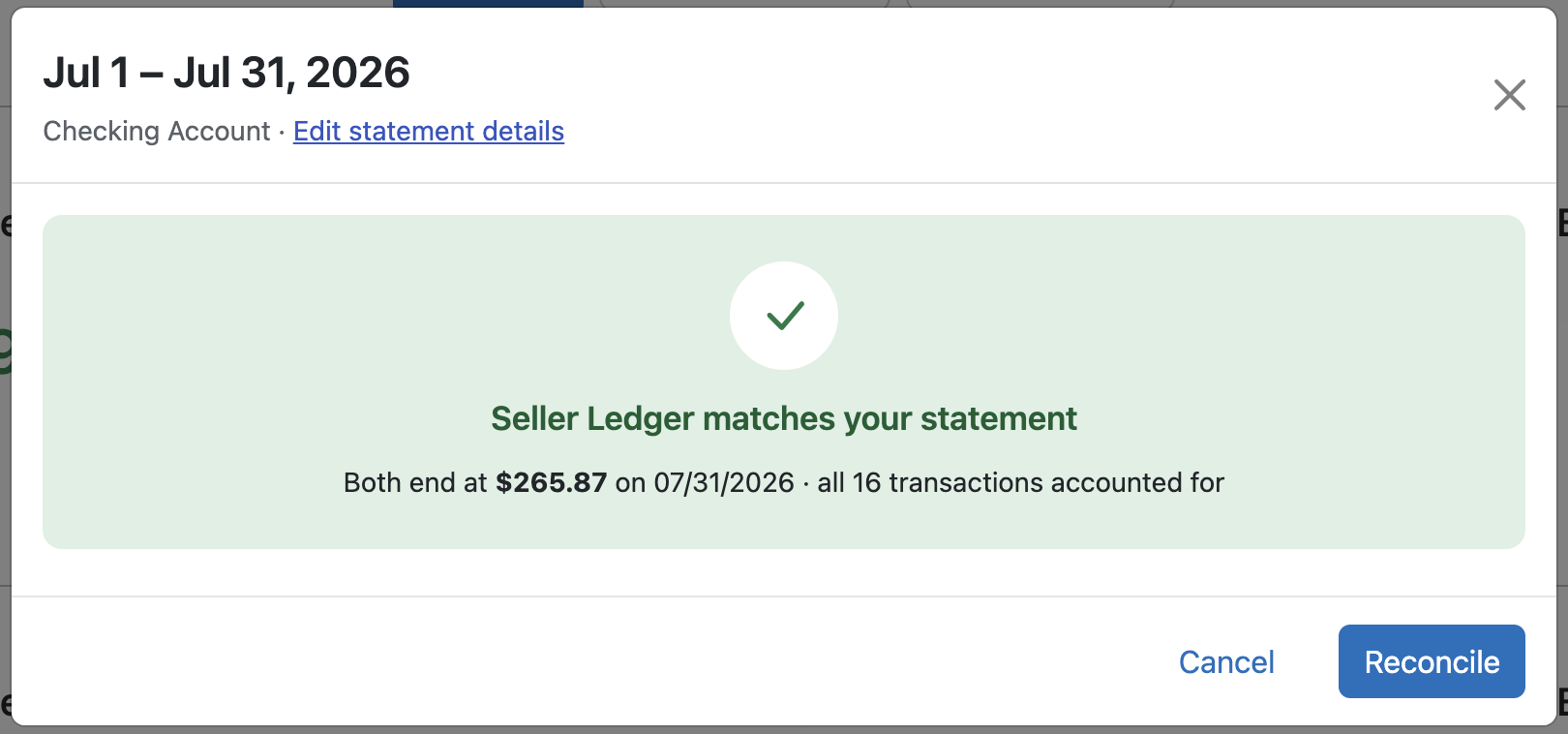
Click the "Reconcile" button and you'll now see that period with a green check mark next to it, showing that everything add up and your balances match.
What to do if the numbers don't match?
Don't worry. A difference almost always comes from one of three common causes.
Cause 1: A transaction is dated in a different period
Transactions near the start or end of a statement period sometimes have a different date in Seller Ledger than on your bank statement. For example, a purchase made on March 31 might not post at your bank until April 1. That one-day difference can put the transaction in a different statement period.
How to fix it:
- On the reconcile screen, click to expand the list of transactions Seller Ledger shows for this period.
- Compare the list to your statement. Look closely at transactions near the beginning and end of the period.
- Find any transaction whose date doesn't match the statement.
- Edit the transaction's date so it matches the date on your statement.
Cause 2: Seller Ledger is missing a transaction
Sometimes a transaction never makes it into Seller Ledger. This can happen because of a connection issue with Plaid (our banking partner) or with the bank or credit card itself.
How to fix it:
- Seller Ledger tries to pull the individual transactions from your uploaded statement and compare them with the transactions it already has.
- If it finds transactions on your statement that are missing in Seller Ledger, it will offer to add them for you.
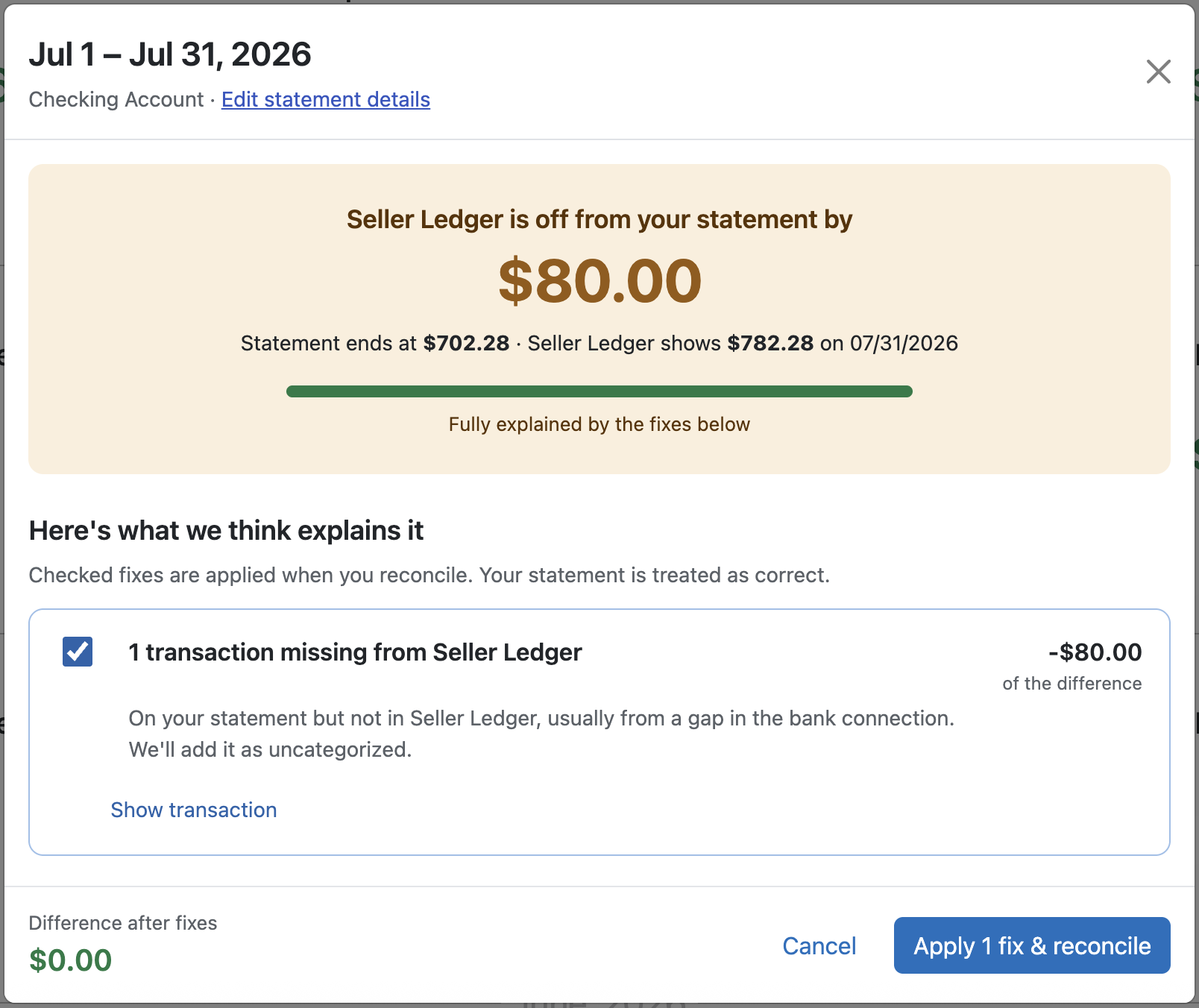
- Review the missing transactions it found and add them.
If Seller Ledger can't pull transactions from your statement, you can add the missing ones by hand:
- Compare your statement with the expanded list of transactions for the period.
- Note any transaction that appears on your statement but not in Seller Ledger.
- Add each missing transaction manually, using the date, description, and amount from your statement.
After you add a missing transaction, remember to categorize it so it shows up correctly in your reports.
Cause 3: Seller Ledger has a duplicate transaction
Connection issues with Plaid or your bank can also cause the opposite problem: the same transaction downloads twice.
How to fix it:
- Click to expand the list of transactions for the period.
- Look for transactions that appear twice with the same date, description, and amount, but only appear once on your statement.
- Click to change the category of the extra copy and choose Hidden.
Hiding the duplicate removes it from the account, your reports, and your tax summaries. If you hide the wrong one by mistake, you can always find it again. See How do I see transactions I have hidden?
Important: Only use Hidden for true duplicates. Personal transactions really happened in your account, so don't hide them. Categorize personal transactions as Not for business instead. This keeps your balance accurate while leaving them out of your business reports. See When should I categorize a transaction as "not for business" vs. "hidden"?
Tip: more than one cause can apply
A single period can have more than one issue. For example, it might have a missing transaction and a duplicate. Work through each cause above. After each fix, check the balances again until they match.
If the opening and closing balances are off by the exact same amount, the problem may not be in this period at all. Seller Ledger works backward from your most recent balance. So a missing or duplicate transaction in a later period can shift the balances for earlier periods. In that case, try reconciling the more recent periods too.
What if Seller Ledger can't read my statement?
You can still reconcile, even if Seller Ledger can't read your statement or you don't have a PDF.
- Click Reconcile for the period.
- Enter these values yourself, using your statement:
- Opening date
- Opening balance
- Closing date
- Closing balance
- Seller Ledger will compare your numbers with its own and walk you through the same steps described above.
The fixes for each cause work the same way. The one difference is that Seller Ledger can't automatically find missing transactions without a readable statement, so you'll add those by hand.
Step 5: Move on to the next period
Once the balances match, that period is reconciled. You can then move on to the next statement period and repeat the process.
Helpful tips
- Reconcile regularly. Reconciling one month at a time is much easier than catching up on a whole year at once.
- Wait for transactions to post. Pending transactions usually aren't imported. Give recent activity a day or two to come through before you reconcile the most recent period. See Why hasn't my bank account updated in a few days?
- Missing a lot of older history? Some banks only share 60 to 90 days of history. You can upload older transactions with a CSV file. See How do I properly format bank CSV files?