
Which periods and date ranges does the Profit & Loss report support?
The Profit & Loss report shows one calendar year at a time, split into columns by year, quarter or month. It does not have a weekly view, and you can't type in your own start and end dates on the report.
What the report offers
Open the Reports tab and choose Profit & Loss. In the Filters section:
- Select year: the year to report on, from January 1 through December 31.
- View by: Year, Quarter or Month.
- Channel: all channels, or one sales channel. If you have more than one connected account for that channel, an Account filter appears so you can narrow it to one account.
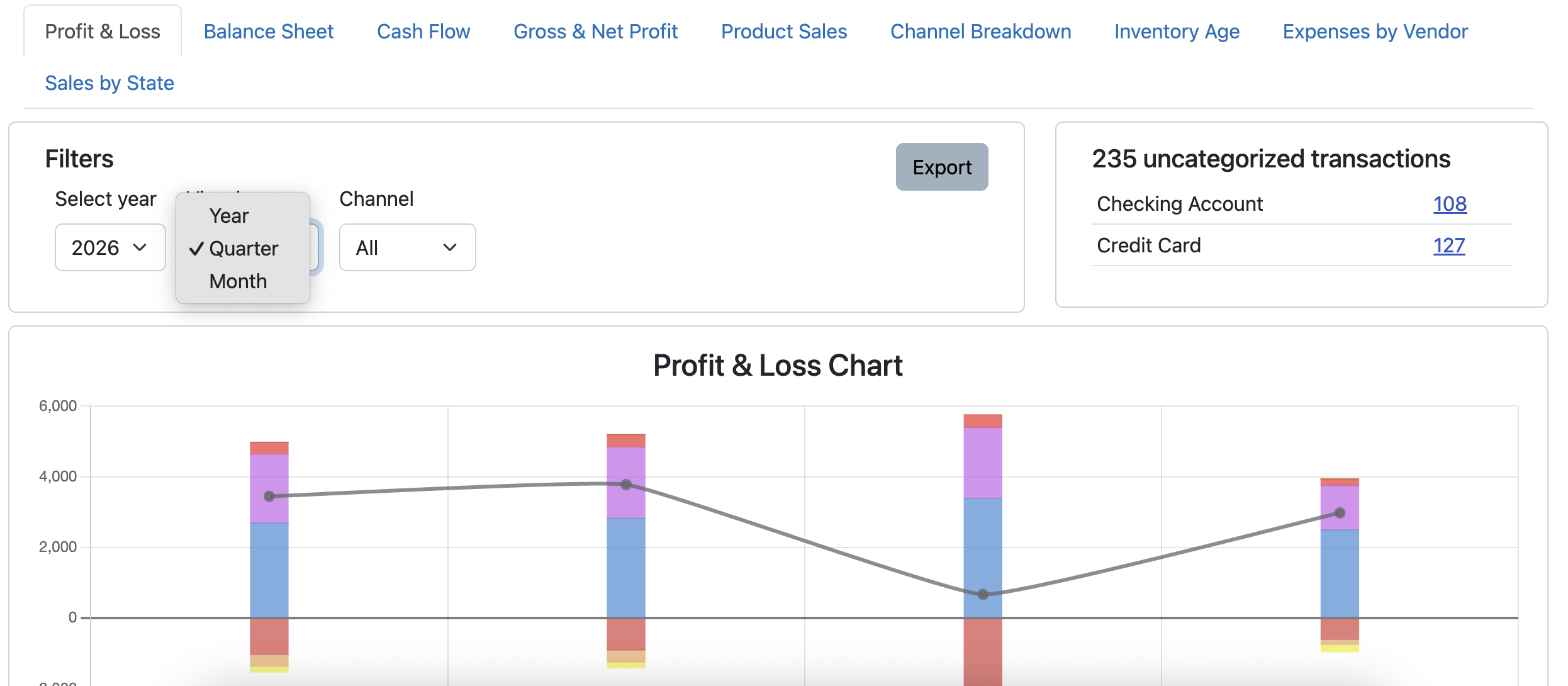
What each View by choice gives you:
- Year: one column for the whole year.
- Quarter: four columns, Quarter 1 through Quarter 4, each made up of three calendar months (January to March, April to June, July to September, October to December).
- Month: twelve columns, January through December.
Every view ends with a Total column for the year, and the Net Profit or Loss row at the bottom shows the result for each column. The chart above the table uses the same columns, so it can't show weeks or a custom range either.
The quarters here are calendar quarters, which differ from the IRS estimated tax quarters. See Why are my quarterly amounts different on estimated taxes versus my profit and loss report?
If you need a different period, such as the last 30 days
The Profit & Loss report can't produce a rolling 30-day or weekly profit figure. However, April, our automated bookkeeping assistant can provide that information. Simply click the "Ask" button in the lower right and tell April what you'd like to know.
Exporting and printing
Click Export in the upper right of the Filters section to get a CSV file of the report. It uses the year, View by and filters you have selected, so it covers the same periods as the screen. Seller Ledger takes you to the Exports page, where you can download the file once its status shows Done. See How do I export transactions from Seller Ledger?
Note, April can't export her answers in CSV format, so if you want to save those answers, you'll want to copy and paste to another program.
Seller Ledger doesn't have a Print button. To print the report, use your browser's Print option and save the page as a PDF. See How do I print reports and other pages?